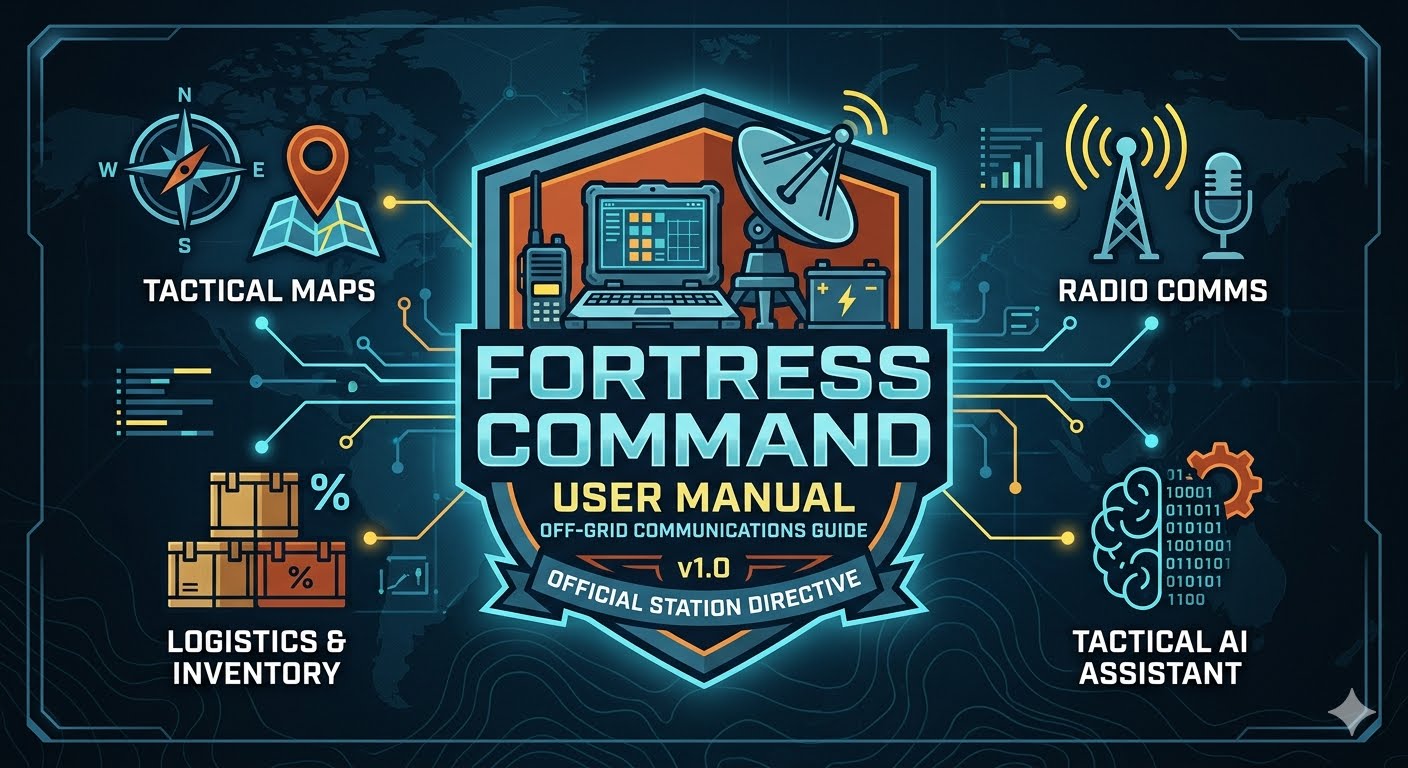
 # 📖 OFFLINE STATION OPERATOR MANUAL // CORE DIRECTIVES
Welcome to the official FORTRESS COMMAND System Documentation Index. Follow these technical guidelines precisely to ensure data integrity and prevent system power collisions on your field station setup.
---
## ⚡ STEP 1: Physical Station Initialization
Follow these hardware rules precisely before attempting to interact with the software interface panels.
> ⚠️ **ANTENNA DISASTER PREVENTION:**
> Never push any transmit button or boot software labeled "FLDIGI" or "JS8Call" if the external radio antenna cable is not securely screwed into the station hub. Operating a transmitter without an electrical load will instantly burn out your radio hardware.
### [1.1] Power Delivery Checklist
Locate your main battery bank generator array. Verify that your system voltage display registers strictly between **12.6V and 13.8V**. If your terminal voltage drops below 11.5V, immediately shut down the node to prevent storage card file corruption.
### [1.2] Accessing the Main Dashboard
Boot your Ubuntu terminal desktop workspace. Click the desktop launcher icon labeled **FORTRESS COMMAND**. The main control canvas grid will paint onto the viewport monitor automatically.
> 💡 **NO INTERNET REQUIRED:** Every card on this platform works 100% off the grid. All manuals, emergency maps, database entries, and tool modules run straight from your local hard disk drive payload.
---
## 📻 STEP 2: Radio Comms & Supply Management
This section guides you through using the communication tools and maintaining your physical stockpile registries.
### 2.1 Using the Communications Switchboard
* **Launching External Programs:** At the top of the **Communications Hub**, click any colored button (e.g., `Launch CHIRP`). The official tool will pop up natively in its own window. When you are finished using it, simply close that window to return to the main dashboard.
* **Real-Time Calculators:** Scroll down the Comms page to locate the **Elevation Line-of-Sight Solver**. Type your link distance and antenna height into the blank fields, then press the brown action button. The system will instantly calculate the minimum clearance heights needed to clear earth curvature.
### 2.2 Managing Stockpiles & Changing Quantities
> 💡 **WORKFLOW TRICK:** The Infrastructure and Botanical Decks are fully interactive. You do not need to rewrite an entire tracking card just to update an inventory number.
* **Modifying an Existing Entry:** To change a supply amount (like updating propane percentages or seed counts), simply **click directly on the colored number badge**. The number will transform into an inline text input box. Type your new amount, and press `Enter` to save it instantly to local browser cache.
* **Erasing Depleted Items:** Next to every inventory row is a small multiplication symbol (`✖`). Tapping this symbol will instantly scrub that specific item off your tracking card to keep your logistics deck clean.
---
## 🗺️ STEP 3: Tactical Maps & AI Terminal Controls
This final segment details how to import terrain charts and query the system co-processor when disconnected from external network links.
### 3.1 Importing Custom Mapping Layers
* **Setting up a Region Container:** Open the **Tactical Maps** panel. Inside the management box, type a clear reference signature (like `SECTOR_GRID_CHARLIE`) into the **New Layer** block and click `Initialize Layer`. A new tracking card will drop onto your workspace instantly.
* **Moving Local Map Assets:** Choose your new category from the dropdown picker, and click `Select Map Source`. An Ubuntu file manager window will slide open. Click any downloaded map graphic image file (`.png`, `.jpg`, `.pdf`) to copy it straight into your off-grid station directory.
### 3.2 Operating the Tactical AI Assistant
> 🔋 **POWER UTILITY CONSERVATION:** Local AI calculations force your computer's main processor chip to work at maximum capacity. If you are operating the node on standby laptop battery banks, keep the AI core toggled to **Core Standby** when not running active queries to save power.
* **Running Offline Inquiries:** Navigate into the **System Monitor** screen and ensure the system switch is toggled to `Core Active`. Type your technical question or paste any intercepted radio log straight into the bottom command bar, then click `Send`. Your localized Ollama core will compute an analytical response within 1 second.
# 📖 OFFLINE STATION OPERATOR MANUAL // CORE DIRECTIVES

Welcome to the official FORTRESS COMMAND System Documentation Index. Follow these technical guidelines precisely to ensure data integrity and prevent system power collisions on your field station setup.

---

## ⚡ STEP 1: Physical Station Initialization

Follow these hardware rules precisely before attempting to interact with the software interface panels.

> ⚠️ **ANTENNA DISASTER PREVENTION:**
> Never push any transmit button or boot software labeled "FLDIGI" or "JS8Call" if the external radio antenna cable is not securely screwed into the station hub. Operating a transmitter without an electrical load will instantly burn out your radio hardware.

### [1.1] Power Delivery Checklist
Locate your main battery bank generator array. Verify that your system voltage display registers strictly between **12.6V and 13.8V**. If your terminal voltage drops below 11.5V, immediately shut down the node to prevent storage card file corruption.

### [1.2] Accessing the Main Dashboard
Boot your Ubuntu terminal desktop workspace. Click the desktop launcher icon labeled **FORTRESS COMMAND**. The main control canvas grid will paint onto the viewport monitor automatically.

> 💡 **NO INTERNET REQUIRED:** Every card on this platform works 100% off the grid. All manuals, emergency maps, database entries, and tool modules run straight from your local hard disk drive payload.

---

## 📻 STEP 2: Radio Comms & Supply Management

This section guides you through using the communication tools and maintaining your physical stockpile registries.

### 2.1 Using the Communications Switchboard

*   **Launching External Programs:** At the top of the **Communications Hub**, click any colored button (e.g., `Launch CHIRP`). The official tool will pop up natively in its own window. When you are finished using it, simply close that window to return to the main dashboard.
*   **Real-Time Calculators:** Scroll down the Comms page to locate the **Elevation Line-of-Sight Solver**. Type your link distance and antenna height into the blank fields, then press the brown action button. The system will instantly calculate the minimum clearance heights needed to clear earth curvature.

### 2.2 Managing Stockpiles & Changing Quantities

> 💡 **WORKFLOW TRICK:** The Infrastructure and Botanical Decks are fully interactive. You do not need to rewrite an entire tracking card just to update an inventory number.

*   **Modifying an Existing Entry:** To change a supply amount (like updating propane percentages or seed counts), simply **click directly on the colored number badge**. The number will transform into an inline text input box. Type your new amount, and press `Enter` to save it instantly to local browser cache.
*   **Erasing Depleted Items:** Next to every inventory row is a small multiplication symbol (`✖`). Tapping this symbol will instantly scrub that specific item off your tracking card to keep your logistics deck clean.

---

## 🗺️ STEP 3: Tactical Maps & AI Terminal Controls

This final segment details how to import terrain charts and query the system co-processor when disconnected from external network links.

### 3.1 Importing Custom Mapping Layers
*   **Setting up a Region Container:** Open the **Tactical Maps** panel. Inside the management box, type a clear reference signature (like `SECTOR_GRID_CHARLIE`) into the **New Layer** block and click `Initialize Layer`. A new tracking card will drop onto your workspace instantly.
*   **Moving Local Map Assets:** Choose your new category from the dropdown picker, and click `Select Map Source`. An Ubuntu file manager window will slide open. Click any downloaded map graphic image file (`.png`, `.jpg`, `.pdf`) to copy it straight into your off-grid station directory.

### 3.2 Operating the Tactical AI Assistant

> 🔋 **POWER UTILITY CONSERVATION:** Local AI calculations force your computer's main processor chip to work at maximum capacity. If you are operating the node on standby laptop battery banks, keep the AI core toggled to **Core Standby** when not running active queries to save power.

*   **Running Offline Inquiries:** Navigate into the **System Monitor** screen and ensure the system switch is toggled to `Core Active`. Type your technical question or paste any intercepted radio log straight into the bottom command bar, then click `Send`. Your localized Ollama core will compute an analytical response within 1 second.
Use code with caution.
🚀 How to Post This Instantly into bbPress:
- Go to your live DreamHost WordPress site and navigate to your Forums page.
- Create a new Topic titled:
[DOCS] Official v1.0 Offline Station Operator Manual. - Select the Text tab option (instead of Visual) in the top-right corner of the forum comment box.
- Copy and paste this exact block code directly inside and click Submit.